You are reading out of date documentation. Please see the latest docs.
PyXLL is an Excel Add-In that enables developers to extend Excel’s capabilities with Python code.
PyXLL makes Python a productive, flexible back-end for Excel worksheets, and lets you use the familiar Excel user interface to interact with other parts of your information infrastructure.
With PyXLL, your Python code runs in Excel using any common Python distribution(e.g. Anaconda, Enthought’s Canopy or any other CPython distribution from 2.3 to 3.8).
Because PyXLL runs your own full Python distribution you have access to all third party Python packages such as NumPy, Pandas and SciPy and can call them from Excel.
Example use cases include:
Calling existing Python code to perform calculations in Excel
Data processing and analysis that’s too slow or cumbersome to do in VBA
Pulling in data from external systems such as databases
Querying large datasets to present summary level data in Excel
Exposing internal or third party libraries to Excel users
PyXLL runs Python code in Excel according to the specifications in its config file, in which you configure how Python is run and which modules PyXLL should load. When PyXLL starts up it loads those modules and exposes certain functions that have been tagged with PyXLL decorators.
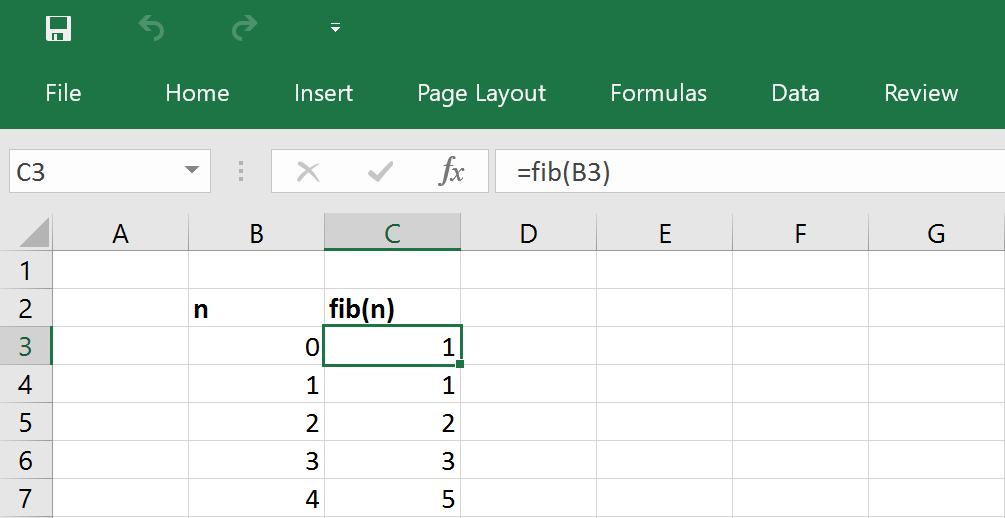
For example, an Excel user defined function (UDF) to compute the n th Fibonacci number can be written in Python as follows:
from pyxll import xl_func

@xl_func
def fib(n):
    "Naiive Fibonacci implementation."
    if n == 0:
        return 0
    elif n == 1:
        return 1
    return fib(n-1) + fib(n-2)
The @xl_func-decorated function fib is detected by PyXLL and exposed to Excel as a user-defined
function.
Excel types are automatically converted to Python types based on an optional function signature. Where there is no simple conversion (e.g. when returning an arbitrary class instance from a method) PyXLL stores the Python object reference as a cell value in Excel. When another function is called with a reference to that cell PyXLL retrieves the object and passes it to the method. PyXLL keeps track of cells referencing objects so that once an object is no longer referenced by Excel it can be dereferenced in Python.
Existing users might want to study What’s new in PyXLL 4. Those upgrading from earlier versions will should read “Important notes for upgrading from previous versions”. If you prefer to learn by watching, perhaps you would prefer our video guides and tutorials.
Note that you cannot mix 32-bit and 64-bit versions of Excel, Python and PyXLL – they all must be the same.
Install the add-in according to the installation instructions, making sure to update the configuration file if necessary. For specific instructions about installing with Anaconda or Miniconda see How to Install PyXLL with Anaconda.
Once PyXLL is installed you will be able to try out the examples workbook that is included in the download. All the code used in the examples workbook is also included in the download.
Note that any errors will be written to the log file, so if you are having difficulties always look in the log file to see what’s going wrong, and if in doubt please contact us.
After you’ve installed PyXLL here is a simple exercise that will show you how to write your first Python user-defined function.
One of the main features of PyXLL is being able to call a Python function from a formula in an Excel workbook.
First start by creating a new Python module and writing a simple Python function. To expose that function
to Excel all you have to do is to apply the @xl_func decorator to it.:
from pyxll import xl_func

@xl_func
def hello(name):
    return "Hello, %s" % name
Save your module and edit the pyxll.cfg file again to add your new module to the list of modules to load and add the directory containing your module to the pythonpath.
[PYXLL]
modules = <add the name of your new module here>

[PYTHON]
pythonpath = <add the folder containing your Python module here>
Go to the Addins menu in Excel and select PyXLL -> Reload. This causes PyXLL to reload the config and Python modules, allowing new and updated modules to be discovered.
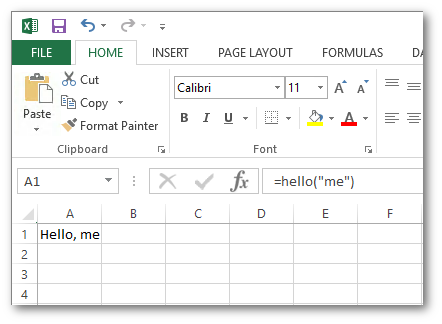
Now in a worksheet you will find you can type a formula using your new Python function.:
=hello("me")
If you make any mistakes in your code or your function returns an error you can check the log file to find out what the error was, make the necessary changes to your code and reload PyXLL again.
The documentation explains how to use all the features of PyXLL, and contains a complete API reference. PyXLL’s features are also well demonstrated in the examples included in download. These are a good place to start to learn more about what PyXLL can do.
More example code can be found on PyXLL’s GitHub page.
If there is anything specifically you’re trying to achieve and can’t find an example or help in the documentation please contact us and we will do our best to help.