
Bring Your Spyder Workflow Into Excel
If you’re already a Spyder IDE user, you’re used to:
- An interactive IPython console
- Running modules with a single keystroke
- Fast code iteration cycles
- Real-time variable exploration
With PyXLL and the companion package pyxll-spyder, you can bring that exact same workflow into Microsoft Excel.
This means you can continue using the tools and environment you already enjoy, while unlocking the ability to:
- Bridge Python and Excel efficiently, in a way that’s natural for Excel users
- Build Excel worksheet functions (UDFs) in Python
- Use all of your Python tools (including numpy, pandas and polars) without limitations
- Access the full Excel Object Model from Python and do everything without the need for VBA
- Integrate Python plots directly into Excel
- Test everything interactively, with no reloads or Excel restarts
- And much more…
If you already use the Spyder, this is a natural extension. It’s an effortless way to add Excel as a target for your Python development.
Installing pyxll-spyder
If you already have Spyder and PyXLL installed, the only extra thing you need to do is to pip install the “pyxll-spyder” package.
If you have not installed PyXLL yet, install it now using these instructions:
https://www.pyxll.com/docs/userguide/installation/firsttime.html
First make sure the Python environment you are using with PyXLL is activated, and then run this command:
pip install pyxll-spyder
Once installed, PyXLL adds a new “Start Spyder Kernel” button to the Excel ribbon.
Starting the Excel-Hosted Kernel
- Launch Excel
- Go to the PyXLL tab
- Click Start Spyder Kernel
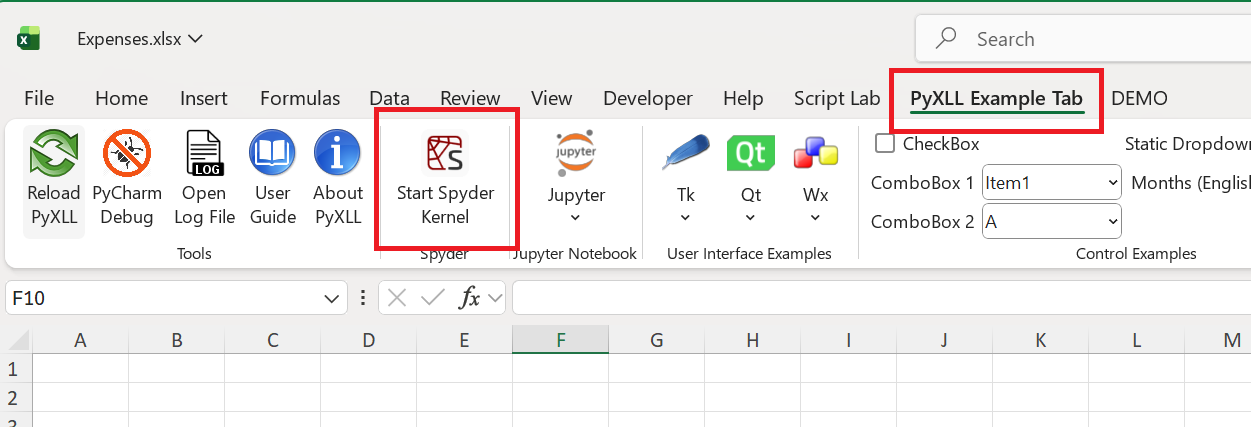
This starts an IPython kernel inside the Excel process — meaning:
- The kernel is now running in the Excel process
- Any Python code you run will execute in Excel
- It can query and manipulate Excel using the Excel Object Model
- All PyXLL features (like writing UDFs and macros) are available
Excel will show a message box the path to the kernel connection file. The connection file will be copied to your clipboard, so there’s no need to remember it.
Connecting Spyder to Excel’s Kernel
In Spyder:
- Open the Spyder IDE, if not already open
- Open the Consoles menu and select “Connect to existing kernel…“
- Paste (Ctrl+V) the kernel connection file copied to the clipboard in section above
- Click OK
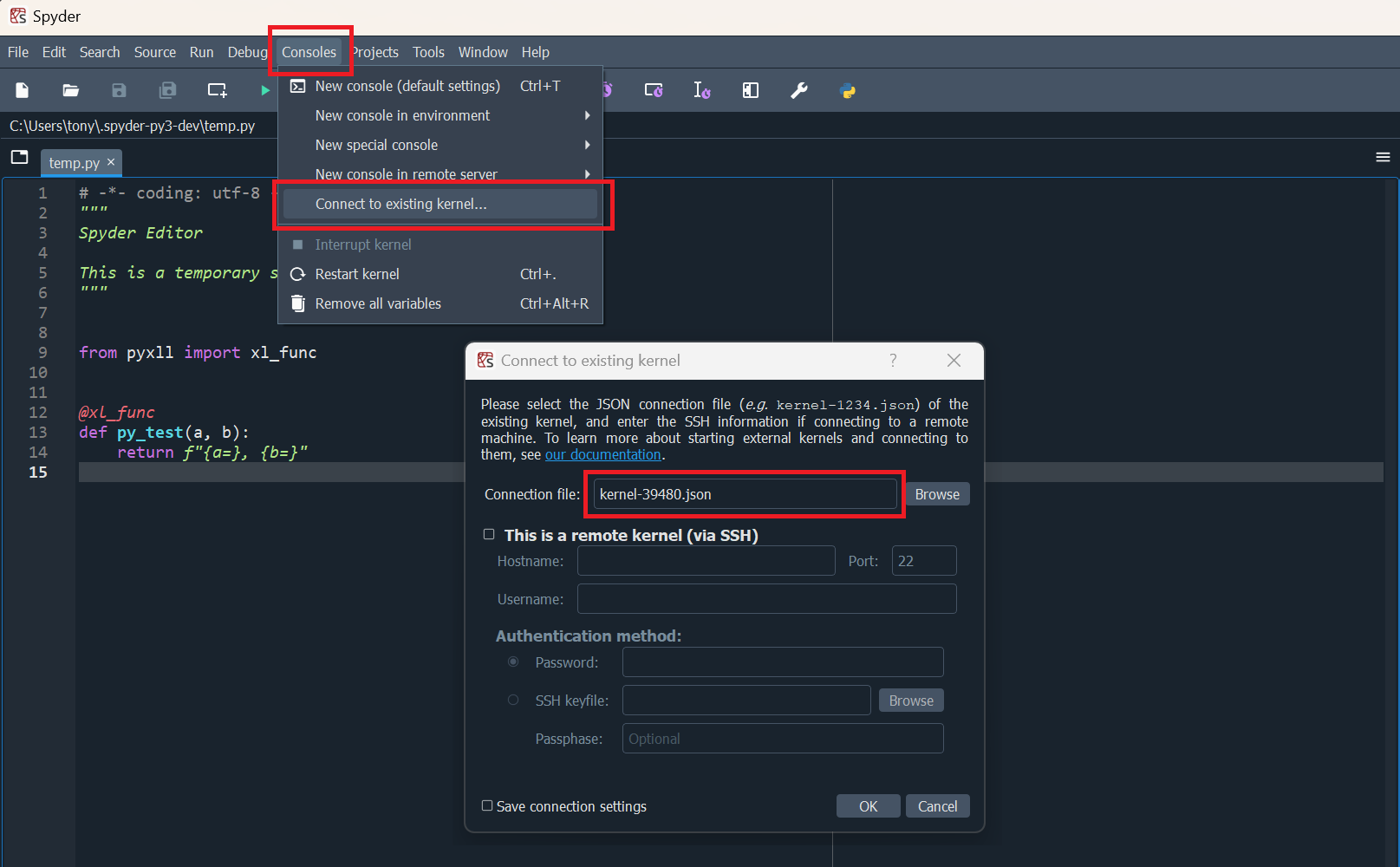
You have now connected Spyder to Excel!
Any code you run executes inside Excel’s interpreter, and can interact with Excel instantly.
Running and Re-Running Modules From Spyder
Once connected, your normal Spyder workflow just works:
- Open a
.pyfile - Press F5
- Spyder sends the module to the Spyder kernel running in Excel
- New or updated PyXLL functions and macros instantly become available in Excel
Because the kernel stays alive in Excel:
- No module reloads needed
- No restarting Excel
- No reloading PyXLL
This will feel completely normal to Spyder users — it mirrors the traditional scientific workflow you’re already comfortable with.
Example (simple PyXLL worksheet function)
from pyxll import xl_func

@xl_func
def multiply(a: float, b: float) -> float:
    return a * b
Run it from Spyder, and instantly PyXLL makes your Python function available to call in the Excel worksheet:
=multiply(3, 4)
This instant feedback is ideal when you’re iterating on ideas as it lets you try out changes quickly and easily.

Using Spyder to Automate Excel
Because the kernel runs in Excel’s interpreter, you can manipulate Excel live using the full Excel Object Model directly from Python, just as you would if you were using VBA:
from pyxll import xl_app

xl = xl_app()

ws = xl.ActiveSheet
ws.Range("A1").Value = "Updated from Spyder"
PyXLL has many helper functions and classes, and you can try those out easily in Spyder too:
from pyxll import XLCell

# Write to Excel as a table starting at cell A1
cell = XLCell.from_range("A1")

# where 'df' is a polars or pandas DataFrame
cell.options(type="table").value = df
The code above wouldn’t work if written as a Python module since that code would be run as soon as the module was imported. The PyXLL add-in gets loaded before the first workbook gets loaded too, so it wouldn’t make sense to call the above code then (and it wouldn’t work!).
Instead, when you’re ready to make your code more re-usable, refactor your code into a macro or ribbon functions that can be run from a button in Excel (for example):
from pyxll import xl_macro, XLCell


@xl_macro
def write_table():
    # TODO: For you to implement
    df = load_data_into_a_dataframe()

    # Write to Excel as a table starting at cell A1
    cell = XLCell.from_range("A1")
    cell.options(type="table").value = df
If you already use Spyder to explore APIs interactively, this will feel completely natural.
Why Spyder + PyXLL Is a Great Combination
For Spyder users, PyXLL is the perfect Excel bridge for your Python code.
- You keep your familiar IDE
- You keep the same interactive workflow you already love
- …but now your code can run directly inside Excel
- …allowing you to build sophisticated tools for Excel users!
If you’ve ever built tools for Excel users, or wished you could deploy your Python workflows to Excel without rewriting anything in VBA, PyXLL gives you that ability without any friction.
Conclusion
If you’re already comfortable in Spyder, integrating PyXLL is one of the easiest ways to:
- Extend your Python skills into Excel
- Build production-ready Excel tools with minimal overhead
- Test, debug, and iterate using the environment you already know
Spyder becomes not just a scientific IDE, but a powerful development hub for Excel-integrated Python applications.