Any time a PyXLL function raises an uncaught Exception, it will be written to the log file as an error.
If you need to figure out what is going wrong, the log file should be your first piece of evidence. The location of the log file is set in the PyXLL config file, and by default it is in the logs folder alongside the PyXLL add-in.
In addition to the log file, PyXLL provides ways of handling errors to present them to the user directly when they occur. The full exception and stack trace are always written to the log file, but in many cases providing the user with some details of the error is sufficient to let them understand the problem without having to resort to the log file.
For example, if a worksheet function fails Excel’s default behaviour is to show an error like #NA. Consider
the following function:
@xl_func
def my_udf(x, y):
    if not 1 <= x <= 100:
         raise ValueError("Expected x to be between 1 and 100")
    return do_something(x, y)
If you call this from Excel with x outside of 1 and 100, without an error handler the user will
see #VALUE!. They can look in the log file to see the full error, but an error handler can
be used to return something more helpful. Using the standard error handler pyxll.error_handler
##ValueError: Expected x to be between 1 and 100 would be returned [1].
The configured error handler will be called for all types of functions when an uncaught Exception is raised, not simply worksheet functions.
PyXLL provides two standard error handlers to choose from.
pyxll.error_handler
pyxll.quiet_error_handler
These are configured by setting error_handler in the configuration file, e.g.:
[PYXLL]
error_handler = pyxll.error_handler
The following table shows how the two different error handlers behave for the different sources of errors:
Error Source |
pyxll.error_handler |
pyxll.quiet_error_handler |
No Handler |
|---|---|---|---|
Worksheet Function |
Return error as string |
Return error as string |
Nothing (returns #NA! etc.) |
Macro |
Return error as string |
Return error as string |
Nothing (returns #NA! etc.) |
Menu Item |
Show error in message box |
Do nothing |
Do nothing |
Ribbon Action |
Show error in message box |
Do nothing |
Do nothing |
Module Import |
Show error in message box |
Do nothing |
Do nothing |
For cases where the provided error handling isn’t suitable, you can provide your own error handler.
An error handler is simply a Python function that you reference from your configuration file, including the module name, for example:
[PYXLL]
error_handler = my_error_handler.error_handler
The error handler takes four [2] arguments, context (ErrorContext), exc_type,
exc_value and exc_traceback. context is a ErrorContext object that contains additional
information about the error that has occurred, such as the type of function that was being called.
The following shows a custom error handler that returns a string if the function type was a worksheet
function (UDF) or macro. For all other types, it calls pyxll.error_handler,
delegating error handling to PyXLL’s standard handler.
from pyxll import error_handler as standard_error_handler

def error_handler(context, exc_type, exc_value, exc_traceback):
    """Custom PyXLL error handler"""

    # For UDFs return a preview of the error as a single line
    if context.error_type in (ErrorContext.Type.UDF, ErrorContext.Type.MACRO):
        error = "##" + getattr(exc_type, "__name__", "Error")
        msg = str(exc_value)
        if msg:
            error += ": " + msg
        return error

    # For all other error types call the standard error handler
    return standard_error_handler(context, exc_type, exc_value, exc_traceback)
PyXLL will still log the exception, so there is no need to do that in your handler.
If you want your error handler to return an error code to Excel instead of a string, return the Exception value. Python Exceptions are converted to Excel errors as per the following table.
Excel error |
Python Exception type |
|---|---|
#NULL! |
|
#DIV/0! |
|
#VALUE! |
|
#REF! |
|
#NAME! |
|
#NUM! |
|
#NA! |
|
Excel errors can be passed to, or returned from, Python functions.
Similarly, Python functions can return specific errors to Excel by returning Python Exception objects.
PyXLL maps Excel errors to Python Exception types as specified in the following table:
Excel error |
Python exception type |
|---|---|
#NULL! |
|
#DIV/0! |
|
#VALUE! |
|
#REF! |
|
#NAME! |
|
#NUM! |
|
#NA! |
|
For example, the following function foo will receive a ValueError object when called as =foo(#VALUE!),
and the function bar returns #DIV/0! when called as =bar():
from pyxll import xl_func
import typing

@xl_func
def foo(x: typing.Any) -> str:
    # x can take any Excel value, including errors.
    # When called with '#VALUE!', x will be 'ValueError()'
    return f"x = {repr(x)}"

@xl_func
def bar() -> Exception:
    # Return #DIV/0! to Excel
    return ZeroDivisionError()
For details about how worksheet functions can accept and return errors please see Error Types from the Argument and Return Types section of the user guide.
When a Python function is called an Excel as a worksheet function, if an uncaught exception is raised PyXLL caches the exception and traceback as well as logging it to the log file.
The last exception raised while evaluating a cell can be retrieved by calling
PyXLL’s get_last_error function.
get_last_error takes a cell reference and returns the last error for that cell as a tuple
of (exception type, exception value, traceback). The cell reference may either be a XLCell
or a COM Range object (the exact type of which depend on the com_package setting in the
config.
The cache used by PyXLL to store thrown exceptions is limited to a maximum size, and so if there are more cells with errors than the cache size the least recently thrown exceptions are discarded. The cache size may be set via the error_cache_size setting in the config.
The error cache can also be disabled entirely by setting disable_error_cache in the
config (new in PyXLL 5.13), in which case get_last_error will
not return anything for a failed function call.
When a cell returns a value and no exception is thrown any previous error is not discarded, because to do so would add additional performance overhead to every function call.
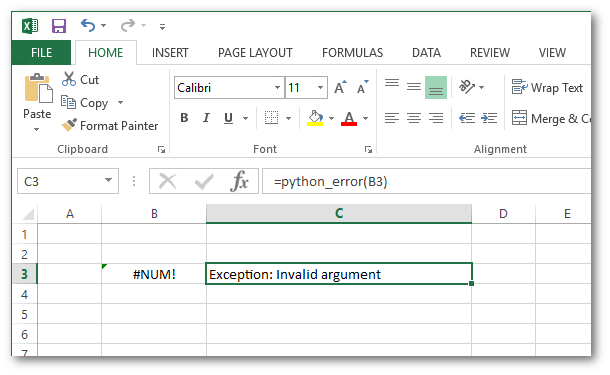
from pyxll import xl_func, xl_menu, xl_version, get_last_error
import traceback

@xl_func("xl_cell: string")
def python_error(cell):
    """Call with a cell reference to get the last Python error"""
    exc_type, exc_value, exc_traceback = get_last_error(cell)
    if exc_type is None:
        return "No error"

    return "".join(traceback.format_exception_only(exc_type, exc_value))

@xl_menu("Show last error")
def show_last_error():
    """Select a cell and then use this menu item to see the last error"""
    selection = xl_app().Selection
    exc_type, exc_value, exc_traceback = get_last_error(selection)

    if exc_type is None:
        xlcAlert("No error found for the selected cell")
        return

    msg = "".join(traceback.format_exception(exc_type, exc_value, exc_traceback))
    if xl_version() < 12:
        msg = msg[:254]

    xlcAlert(msg)
New in PyXLL 5.12
When a worksheet function or macro is given an argument of the wrong type that often results in a
#VALUE! error, can make it difficult to trace what the actual error is.
By setting propagate_errors=True in the @xl_func or @xl_macro decorators, PyXLL will check
to see if any of the arguments are errors before calling the function.
If propagate_errors is set, and if an argument is an error, then instead of calling the function a new
PropagatedError exception is raised. This new PropagatedError exception wraps the original exception,
and the standard error handler converts this to a string so the user can see the error that has been propagated.
For example, suppose you had the following Python functions:
from pyxll import xl_func

@xl_func
def bar(x: bool):
    if not x:
        raise RuntimeError("x is expected to be True")
    return True

@xl_func(propagate_errors=True)
def foo(x: bool):
    return f"Called with {x=}"
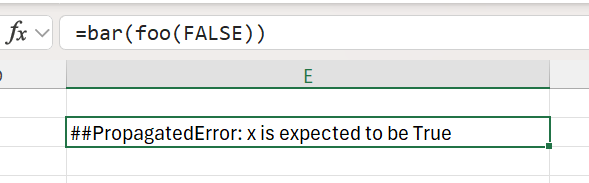
In Excel, if you called =foo(bar(FALSE)) without any error propagation, this would result in a #VALUE!
error since the argument to foo would be an error string, and not the expected boolean type.
With error propagation enabled, =foo(bar(FALSE)) will result in a propagated error message. The inner function
bar returns an error, but because foo has propagate_errors=True set the PyXLL add-in will detect that
it is being called with an error and not a boolean value and propagate the error instead of calling the function.
Logging is suppressed for propagated errors and so only the original error is logged.
By default, error propagation works by testing each argument to see if it is either an Excel error type, or a string that matches the error strings converted by the Standard Error Handlers.
If you are using Custom Error Handlers you may need to use a different test to see if an argument should be considered an error or not, for the purpose of error propagation.
This is done by using the propagate_errors_filter kwarg to the @xl_func or @xl_macro decorators.
propagate_errors_filter can be set to a function that takes the argument value and returns True if the argument
should be considered an error, or False otherwise.
A typical errors filter function might look as follows:
from pyxll import xl_func
import re

def custom_error_filter(arg):
    # Always treat exceptions as errors
    if isinstance(arg, Exception):
        return True

    # If the argument is a string, check if it looks like an error
    # converted in your error handler
    if isinstance(arg, str):
        if re.match(r"<your error pattern>", arg):
            return True

    # Otherwise, it's not an error
    return False

@xl_func(propagate_errors=True,
         propagate_errors_filter=custom_error_filter)
def foo(x: bool):
    return f"Called with {x=}"
Errors are not propagated by default. This is intentional because checking each argument to test if it’s an error introduces a small additional overhead for each function that uses this feature.
The convenience of having error propagation enabled for all functions might outweigh the small performance hit, but that will depend on your specific use case and preferences. While it is not enabled by default it can (optionally) be enabled for all functions, or for all functions in specific modules or packages.
To enable error propagation for all functions use the Default Decorator Parameters configuration in the
pyxll.cfg file.
Using the Default Decorator Parameters, you can provide default values for both propagate_errors
and propagate_errors_filter instead of specifying these parameters on every function.
Footnotes