When you started using PyXLL you probably discovered how easy it is to register a Python function in Excel. To improve efficiency and reduce the chance of errors, you can also specify what types the arguments to that function are expected to be, and what the return type is. This information is commonly known as a function’s signature. There are three common ways to add a signature to a function, described in the following sections.
Also see Using Type Hints.
The most common way to provide the signature is to provide a function signature as the first
argument to @xl_func:
from pyxll import xl_func
from datetime import date, timedelta

@xl_func("date d, int i: date")
def add_days(d, i):
    return d + timedelta(days=i)
When adding a function signature string it is written as a comma separated list of each argument type followed
by the argument name, ending with a colon followed by the return type. The signature above specifies that the
function takes two arguments called d, a date, and i, and integer, and returns a value of type date.
You may omit the return type; PyXLL automatically converts it into the most appropriate Excel type.
Adding type information is useful as it means that any necessary type conversion is done automatically, before your function is called.
Type information can also be provided using type annotations, or hints, in Python 3.
See Using Type Hints for more detailed information about using type hints.
This example shows how you pass dates to Python functions from Excel using type annotations:
from pyxll import xl_func
from datetime import date, timedelta

@xl_func
def add_days(d: date, i: int) -> date:
    return d + timedelta(days=i)
Internally, an Excel date is just a floating-point a number. If you pass a
date to a Python function with no type information then that argument will
just be a Python float when it is passed to your Python function. Adding a
signature removes the need to convert from a float to a date in every
function that expects a date. The annotation on your Python function (or the
signature argument to @xl_func) tells PyXLL and Excel what
type you expect, and the the conversion is done automatically.
The final way type information can be added to a function is by using specific argument and return type
decorators. These are particularly useful for more complex types that require parameters, such as
NumPy arrays and Pandas types. Parameterized types can be specified
as part of the function signature, or using @xl_arg and @xl_return.
For example, the following function takes two 1-dimensional NumPy arrays, using a function signature:
from pyxll import xl_func
import numpy as np

@xl_func("numpy_array<ndim=1> a, numpy_array<ndim=1> b: var")
def add_days(a, b):
    return np.correlate(a, b)
But this could be re-written using @xl_arg as follows:
from pyxll import xl_func, xl_arg
import numpy as np

@xl_func
@xl_arg("a", "numpy_array", ndim=1)
@xl_arg("b", "numpy_array", ndim=1)
def add_days(a, b):
    return np.correlate(a, b)
Many types can be parameterised to further control the type conversion between Excel and Python. An example of this
is in the section above where we see the numpy_array type accepts a type parameter ndim.
Type parameters can be specified when using a function signature, or when using the @xl_arg and @xl_return
decorators.
For details of the type parameters available see the specific documentation for the type you are interested in. Type parameters can be different depending on whether it is the argument conversion or return conversion that is being specified.
Several standard types may be used in the signature specified when exposing a Python worksheet function. These types have a straightforward conversion between PyXLL’s Excel-oriented types and Python types. Arrays and more complex objects are discussed later.
Below is a list of these basic types. Any of these can be specified as an argument type or return type in a function signature. For some types, Python type hints or annotations can be used.
PyXLL Type |
Python Type |
Python Type Hint |
|---|---|---|
float |
|
|
int |
|
|
str |
|
|
unicode |
|
N/A |
bool |
|
|
datetime |
|
|
date |
|
|
time |
|
|
var |
|
|
object |
|
|
rtd |
||
xl_cell |
||
range |
Excel Range COM Wrapper [7] |
N/A |
function |
|
|
Footnotes
See Array Functions for more details about array functions.
Ranges of cells can be passed from Excel to Python as a 1d or 2d array.
Any type can be used as an array type by appending [] for a 1d array or [][] for a 2d array:
from pyxll import xl_func

@xl_func("float[][] array: float")
def py_sum(array):
    """return the sum of a range of cells"""
    total = 0.0

    # 2d array is a list of lists of floats
    for row in array:
        for cell_value in row:
            total += cell_value

    return total
A 1d array is represented in Python as a simple list, and when a simple list is returned to Excel it will be returned as a column of data. A 2d array is a list of lists (list of rows) in Python. To return a single row of data, return it as a 2d list of lists with only a single row.
When returning a 2d array remember that it* must* be a list of lists. This is
why you woud return a single a row of data as [[1, 2, 3, 4]], for example.
To enter an array formula in Excel you select the cells, enter the formula
and then press Ctrl+Shift+Enter.
Any type can be used as an array type, but float[] and float[][] require the least marshalling between Excel and
python and are therefore the fastest of the array types.
If you a function argument has no type specified or is using the var type, if it is passed a range of data
that will be converted into a 2d list of lists of values and passed to the Python function.
Type hints such as List[int] can also be used. See Array Type Hints for details.
See NumPy Array Types and Pandas Types for details of how to pass numpy and pandas types
between Excel and Python functions.
The var type can be used when your function accepts any type. It is also the default type used if no other
type is specified.
When an argument is passed from Excel to Python using the var type the most appropriate conversion is chosen
automatically from the primiative types natively supported by Excel.
The following examples all use the var type:
from pyxll import xl_func

@xl_func
def my_function(x):
    # As no type was specified, both 'x' and return type type will
    # default to 'var'
    return str(type(x))  # return type is also 'var' as unspecified
from pyxll import xl_func

@xl_func("x var: str")
def my_function(x):
    # x can be of any type as 'var' was specified as the argument
    # type in the function signature above.
    return str(type(x))  # return type is 'str' from the signature
from pyxll import xl_func
import typing

@xl_func
def my_function(x: typing.Any) -> str:
    # x will use the 'var' type because the 'Any' type hint was used
    return str(type(x))   # return type is 'str' from the type hint
from pyxll import xl_func

@xl_func
@xl_arg("x", "var")
def my_function(x):
    # x was specified to use the 'var' type using @xl_arg above
    return str(type(x))  # return type is unspecified as so 'var' is assumed
When using see cached objects the var will, by default, look up the cached object from
the object handle passed to the function and pass the object to the function. This can be disabled using the
no_object_lookup type parameter, for example var<no_object_lookup=True>.
The no_object_lookup type parameter is new in PyXLL 5.6.
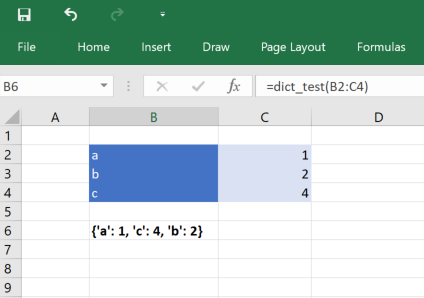
Python functions can be passed a dictionary, converted from an Excel range of values.
Dicts in a spreadsheet are represented as a 2xN range of keys and their associated values.
The keys are in the columns unless the range’s transpose argument (see below) is true.
The following is a simple function that accepts an dictionary of integers keyed by strings. Note that
the key and value types are optional and default to var if not specified.
from pyxll import xl_func

@xl_func("dict<str, int>: str")  # Keys are strings, values are integers
def dict_test(x):
    return str(x)
From PyXLL 5.8.0, if using Python 3.8 or higher, you can also use the standard TypedDict type annotation.
from typing import TypedDict
from pyxll import xl_func

class MyTypedDict(TypedDict):
  a: int
  b: int
  c: int

@xl_func
def dict_test(x: MyTypedDict) -> str:
    return str(x)
The dict type can be parameterized so that you can also specify the key and value types, and some other
options.
dict, when used as an argument type
dict<key=var, value=var, transpose=False, ignore_missing_keys=True, ignore_missing_values=False>key Type used for the dictionary keys.
value Type used for the dictionary values.
transpose
- False (the default): Expect the dictionary with the keys on the first column of data and the values on the second.
- True: Expect the dictionary with the keys on the first row of data and the values on the second.
- None: Try to infer the orientation from the data passed to the function.
ignore_missing_keys If True, ignore any items where the key is missing.
ignore_missing_values If True, ignore any items where the value is missing (new in PyXLL 5.7).
dict, when used as an return type
dict<key=var, value=var, transpose=False, order_keys=True>key Type used for the dictionary keys.
value Type used for the dictionary values.
transpose
- False (the default): Return the dictionary as a 2xN range with the keys on the first column of data and the values on the second.
- True: Return the dictionary as an Nx2 range with the keys on the first row of data and the values on the second.
order_keys Sort the dictionary by its keys before returning it to Excel.
Python dataclasses are a convenient way of creating Python classes encapsulating a collection of typed data fields.
They can also be used to make passing structured data objects between Python and Excel simpler.
Working with dataclasses in Excel is similar to using dictionaries. From Excel, a 2d array of key, value pairs can be passed to a function expecting a dataclass and the correct dataclass will be constructed automatically.
For example, the following code defines a dataclass:
from dataclasses import dataclass

@dataclass
class InventoryItem:
    """Class for keeping track of an item in inventory."""
    name: str
    unit_price: float
    quantity_on_hand: int = 0
To write an Excel function that accepts a dataclass of this type you simply need to add a type hint to the function argument:
from pyxll import xl_func

@xl_func
def cost_of_stock(item: InventoryItem) -> float:
    """Returns the total cost of inventory items on hand."""
    return item.unit_price * item.quantity_on_hand
Or, if passing a signature string to @xl_func instead of using type hints:
from pyxll import xl_func

@xl_func("InventoryItem item: float")
def cost_of_stock(item):
    """Returns the total cost of inventory items on hand."""
    return item.unit_price * item.quantity_on_hand
Lists of dataclasses can also be used. The first column of data is the field names, and subsequent columns are field values for each dataclass instance.
from pyxll import xl_func
from typing import List

@xl_func
def total_cost_of_stock(items: List[InventoryItem]) -> float:
    """Returns the total cost of inventory items on hand."""
    total = 0.0
    for item in items:
        total += item.unit_price * item.quantity_on_hand
    return total
If you data is laid out with the field names as column headers, use the transpose type parameter on the
dataclass arguement, for example, using @xl_arg:
from pyxll import xl_func, xl_arg

@xl_func
@xl_arg("items", transpose=True)
def total_cost_of_stock(items: List[InventoryItem]) -> float:
    ...
Or using a signature string to @xl_func:
from pyxll import xl_func

@xl_func("InvetoryItem<transpose=True>[]: float")
def total_cost_of_stock(items: List[InventoryItem]) -> float:
    ...
Dataclasses can also be used as a return type.
Using dataclasses requires PyXLL 5.8.0 and Python 3.7 or later.
Union types can be used for functions that accept arguments or return objects of more than one types. In such
examples, the var type can be used, but then the value may need to be converted in the function when it’s
more convenient to let PyXLL do the conversion.
Union types are new in PyXLL 5.1
For example, support you have a function that can take either a date or a string. This is a common
situation for functions that can either take an absolute date or a time period. Using the var type, Excel
dates are passed as numbers since that is how Excel represents dates, and so the conversion from a number
to a date must be done using get_type_converter (see Manual Type Conversion).
Using a union type removes the need for thisextra conversion step.
Union types may be specified in the @xl_func function signature using the union<...> type, with
the possible types passed as parameters. They can also be specified using Python type annotations using the
typing.Union type annotation.
The following is a function that will accept either a date or a str. The conversion from an Excel
date to a Python date is performed automatically if a date is passed, and the function can also accept a
string argument from Excel.
from pyxll import xl_func
import datetime as dt

@xl_func("union<date, str> value: str")
def date_or_string(value):
    if isinstance(value, dt.date):
        return "Value is a date: %s" % value
    return "Value is a string: %s" % value
The same can be written using Python type annotations as follows
from pyxll import xl_func
import datetime as dt
import typing

@xl_func
def date_or_string(value: typing.Union[dt.date, str]) -> str:
    if isinstance(value, dt.date):
        return "Value is a date: %s" % value
    return "Value is a string: %s" % value
From Python 3.10 onwards, Union[A, B] can be written as A | B.
The order the union type arguments are specified in matters.
In the above example, if str was placed before date then it would not work as intended since the
conversion to str would take precedence over the conversion to date.
PyXLL will attempt to convert the Excel value to a Python value as follows:
If the Excel value is a cached object and one or more of the types are object or a type based on object,
each object-like type conversion will be attempted in order from left to right.
If the Excel value exactly matches one of the types then the value will not be converted. This check is only possible for primitive types.
An attempt will be made to convert the value to each of the listed types in order, from left to right. The result from the first attempted conversion that succeeds will be used.
The logic around converting cached objects was refined in PyXLL 5.6.
Optional types are used for arguments that can be omitted by the user calling the function. If the argument
is omitted then None will be passed to Python.
Optional types are new in PyXLL 5.6
Optional types may be specified in the @xl_func function signature using the optional<type> type, with
the actual type passed as the type parameter. They can also be specified using Python type annotations using the
typing.Optional type annotation.
The following is a function that will accept an optional date argument. If no argument is provided then
the function will be called with None.
from pyxll import xl_func
import datetime as dt

@xl_func("optional<date> value: str")
def optional_date(value):
    if value is None:
        return "No date"
    return value.strftime("%Y-%m-%d")
The same can be written using Python type annotations as follows
from pyxll import xl_func
import datetime as dt
import typing

@xl_func
def optional_date(value: typing.Optional[dt.date]) -> str:
    if value is None:
        return "No date"
    return value.strftime("%Y-%m-%d")
Python functions exposed to Excel using @xl_func can be passed in to other Python functions
from Excel using the function type. This is useful when you have one function that takes another
callback function that the user can select.
The function type is new in PyXLL 5.4.
For example, the following function takes a list of values and a function and calls that function on each value and returns the result:
from pyxll import xl_func

@xl_func("float[] values, function fn: float[]")
def apply_function(values, fn):
    return [fn(value) for value in values]
This function can be called from Excel passing in another @xl_func function.
from pyxll import xl_func
import math

@xl_func("float x: float")
def sigmoid(x):
    return 1  / (1 + math.exp(x))
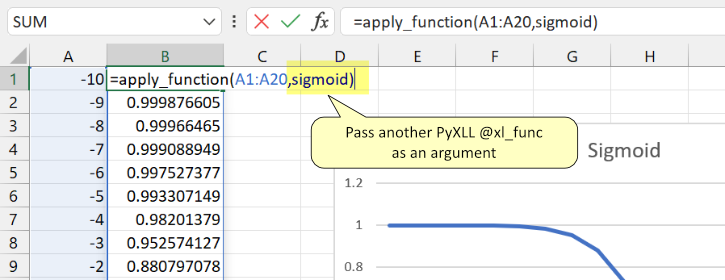
We can call our sigmoid function on a single value in Excel, or using the apply_function function
above we can pass in the sigmoid function and call it for list of values.
=apply_function(A1:A20, sigmoid)
If you are using Python type annotations instead of passing a signature string the types typing.Callable
or collections.abc.Callable may be used to specify the argument is a function.
Only PyXLL functions can be passed as function arguments. You cannot pass standard Excel functions, VBA functions or functions from other add-ins to Python functions using the function type.
Also See Error Handling.
Excel errors can be passed to, or returned from, Python functions that use the var or exception types.
Similarly, Python functions can return specific errors to Excel by returning Python Exception objects.
PyXLL maps Excel errors to Python Exception types as specified in the following table:
Excel error |
Python exception type |
|---|---|
#NULL! |
|
#DIV/0! |
|
#VALUE! |
|
#REF! |
|
#NAME! |
|
#NUM! |
|
#NA! |
|
New in PyXLL 5.9
To pass errors as argument or return types, as well as using the var type the explicit exception type
can be used. The exception type takes a type parameter cls to further specify the exception type.
Alternatively, a Python type annotation of Exception or other Exception type can be used.
Using the exception type explicitly is usually used when a function can accept or return either a value or
an error. The union type can be used in conjunction with the exception type for this purpose.
The example below shows a function that can return a value or a ValueError exception:
from pyxll import xl_func

@xl_func("bool x: union<str, exception<cls=ValueError>>")
def string_or_error(x):
    if x:
        return "OK!"
    return ValueError()
Below is an equivalent function written using Python type annotations:
from pyxll import xl_func

@xl_func
def string_or_error(x: bool) -> str | ValueError:
    if x:
        return "OK!"
    return ValueError()
Not all Python types can be conveniently converted to a type that can be represented in Excel.
Even for types that can be represented in Excel it is not always desirable to do so (for example, and Pandas DataFrame with millions of rows could be returned to Excel as a range of data, but it would not be very useful and would make Excel very slow).
For cases like these, PyXLL can return a handle to the Python object to Excel instead of trying to convert the object to an Excel friendly representation. The actual object is held in PyXLL’s object cache until it is no longer needed. This allows for Python objects to be passed between Excel functions easily, without the complexity or possible performance problems of converting them between the Python and Excel representations.
For more information about how PyXLL can automatically cache objects to be passed between Excel functions as object handles, see Cached Objects.
As well as the standard types listed above you can also define your own argument and return types, which can then be used in your function signatures.
Custom argument types need a function that will convert a standard Python type to the custom type, which will then be passed
to your function. For example, if you have a function that takes an instance of type X,
you can declare a function to convert from a standard type to X and then use X as a type in your
function signature. When called from Excel, your conversion function will be called with an instance of the base
type, and then your exposed UDF will be called with the result of that conversion.
To declare a custom type, you use the @xl_arg_type decorator on your conversion function.
The @xl_arg_type decorator takes at least two arguments, the name of your custom type and the base type.
Here’s an example of a simple custom type:
from pyxll import xl_arg_type, xl_func

class CustomType:
    def __init__(self, x):
        self.x = x

@xl_arg_type("CustomType", "string")
def string_to_customtype(x):
    return CustomType(x)

@xl_func("CustomType x: bool")
def test_custom_type_arg(x):
    # this function is called from Excel with a string, and then
    # string_to_customtype is called to convert that to a CustomType
    # and then this function is called with that instance
    return isinstance(x, CustomType)
You can now use CustomType as an argument type in a function signature. The
Excel UDF will take a string, but when your Python function is called the
conversion function will have been used invisibly to automatically convert
that string to a CustomType instance.
To use a custom type as a return type you also have to specify the conversion function from your custom type to a base type. This is exactly the reverse of the custom argument type conversion described previously.
The custom return type conversion function must be decorated with the @xl_return_type decorator.
For the previous example the return type conversion function could look like:
from pyxll import xl_return_type, xl_func

@xl_return_type("CustomType", "string")
def customtype_to_string(x):
    # x is an instance of CustomType
    return x.x

@xl_func("string x: CustomType")
def test_returning_custom_type(x):
    # the returned object will get converted to a string
    # using customtype_to_string before being returned to Excel
    return CustomType(x)
Any recognized type can be used as a base type. That can be a standard Python type, an array type or another custom type (or even an array of a custom type!). The only restriction is that it must resolve to a standard type eventually.
Custom types can be parameterized by adding additional keyword arguments to the conversion functions. Values for
these arguments are passed in from the type specification in the function signature, or using @xl_arg
and @xl_return:
from pyxll import xl_arg_type, xl_func

class CustomType2:
    def __init__(self, x, y):
        self.x = x
        self.y = y

@xl_arg_type("CustomType2", "string", y=None)
def string_to_customtype2(x):
    return CustomType(x, y)

@xl_func("CustomType2<y=1> x: bool")
def test_custom_type_arg2(x):
    assert x.y == 1
    return isinstance(x, CustomType)
Sometimes it’s useful to be able to convert from one type to another, but it’s not always convenient to have to determine the chain of functions to call to convert from one type to another.
For example, you might have a function that takes an array of var types, but some of those may actually be datetimes, or one of your own custom types.
To convert them to those types you would have to check what type has actually been passed to your function and then decide what to call to get it into exactly the type you want.
PyXLL includes the function get_type_converter to do this for you.
It takes the names of the source and target types and returns a
function that will perform the conversion, if possible.
Here’s an example that shows how to get a datetime from a var parameter:
from pyxll import xl_func, get_type_converter
from datetime import datetime

@xl_func("var x: string")
def var_datetime_func(x):
    var_to_datetime = get_type_converter("var", "datetime")
    dt = var_to_datetime(x)
    # dt is now of type 'datetime'
    return "%s : %s" % (dt, type(dt))