Excel has supported asynchronous worksheet functions since Office 2010. To be able to use asynchronous worksheet functions with PyXLL you will need to be using at least that version of Office.
Excel asynchronous worksheet functions are called as part of Excel’s calculation in the same way as other functions, but rather than return a result, they can schedule some work and return immediately, allowing Excel’s calculation to progress while the scheduled work for the asynchronous function continues concurrently. When the asynchronous work has completed, Excel is notified.
Asynchronous functions still must be completed as part of Excel’s normal calculation phase. Using asynchronous functions means that many more functions can be run concurrently, but Excel will still show as calculating until all asynchronous functions have returned.
Functions that use IO, such as requesting results from a database or web server, are well suited to being made
into asynchronous functions. For CPU intensive tasks [1] using the thread_safe option to @xl_func
may be a better alternative.
If your requirement is to return the result of a very long running function back to Excel after recalculating has completed, you may want to consider using an RTD (Real Time Data) function instead. An RTD function doesn’t have to keep updating Excel, it can just notify Excel once when a single calculation is complete. Also, it can be used to notify the user of progress which for very long running tasks can be helpful.
If Excel is interupted during an async calculation it will return control of Excel to use the user.
When calculating, Excel will appear blocked but if the user clicks somewhere or presses a button on the keyboard Excel will interupt the calculation and return control to Excel.
If there are any asynchronous functions that have not yet completed, after a short time Excel will resume calculating.
New in PyXLL 5.9.0
Excel’s async handles (how the result is returned back to Excel) are only valid for the calculation phase they were started in. Attempting to return a result after Excel’s calculation has completed (or been interupted) results in an error.
As of PyXLL 5.9.0, PyXLL will manage the async handles so that any async functions started during on calculation phase can still return their result in the next calculation phase. This means that if Excel is interupted before an async function completes then it will continue and the result will be returned to Excel when it resumes calculating.
This behaviour can be disabled to give the same behaviour as earlier PyXLL versions by setting the following in your pyxll.cfg file:
[PYXLL]
disable_async_cache = 1
If you are using a modern version of Python, version 3.5.1 or higher, writing asynchronous Excel worksheet functions
is as simple as adding the async keyword to your function definition. For earlier versions of Python, or
for PyXLL versions before 4.2, or if you just don’t want to use coroutines, see Before Python 3.5.
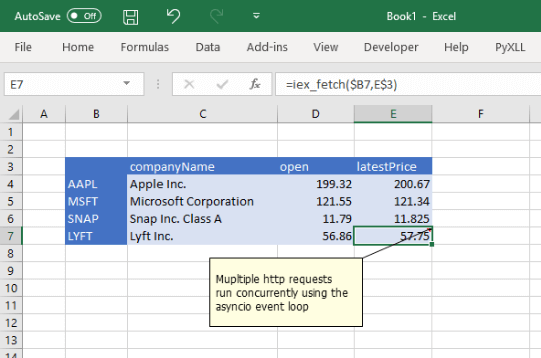
The following example shows how the asynchronous http package aiohttp can be used with PyXLL to
fetch stock prices without blocking the Excel’s calculation while it waits for a response [2]
from pyxll import xl_func
import aiohttp
import json

endpoint = "https://api.iextrading.com/1.0/"

@xl_func
async def iex_fetch(symbol, key):
    """returns a value for a symbol from iextrading.com"""
    url = endpoint + f"stock/{symbol}/batch?types=quote"
    async with aiohttp.ClientSession() as session:
        async with session.get(url) as response:
            assert response.status == 200
            data = await response.read()

    data = json.loads(data)["quote"]
    return data.get(key, "#NoData")
The function above is marked async. In Python, as async function like this is called a coroutine.
When the coroutine decorated with @xl_func is called from Excel, PyXLL schedules it to run on an asyncio
event loop.
The coroutine uses await when calling response.read() which causes it to yield to the asyncio event
loop while waiting for results from the server. This allows other coroutines to continue rather than blocking
the event loop.
Note that if you do not yield to the event loop while waiting for IO or another request to complete, you will be blocking the event loop and so preventing other coroutines from running.
If you are not already familiar with how the async and await keywords work in Python, we recommend you
read the following sections of the Python documentation:
Async functions cannot be automatically resized using the “auto_resize” parameter to @xl_func.
If you need to return an array using an async function and have it be resized, it is recommended to return
the array from the async function as an object by specifying object as the return type of your function,
and then use a second non-async function to expand the array.
For example:
@xl_func("var x: object")
async def async_array_function(x):
    # do some work that creates an array
    return array

@xl_func("object: var", auto_resize=True)
def expand_array(array):
    # no need to do anything here, PyXLL will do the conversion
    return array
Using the asyncio event loop with PyXLL requires a minimum of
Python 3.5.1 and PyXLL 4.2. If you do not have these minimum requirements see Before Python 3.5.
When a coroutine (async function) is called from Excel, it is scheduled on the asyncio event loop. PyXLL
starts this event loop on demand, the first time an asynchronous function is called.
For most cases, PyXLL default asyncio event loop is well suited. However the event loop that PyXLL uses can
be replaced by setting start_event_loop and stop_event_loop in the PYXLL section of the
pyxll.cfg file. See PyXLL Settings for more details.
To schedule tasks on the event loop outside of an asynchronous function, the utility function get_event_loop
can be used. This will create and start the event loop, if it’s not already started, and return it.
By default, the event loop runs on a single background thread. To schedule a function it is therefore recommended to
use loop.call_soon_threadsafe, or loop.create_task to schedule a coroutine.
If you are using an older version of Python than 3.5.1, of if you have not yet upgraded to PyXLL 4.2 or later, you
can still use asynchronous worksheet functions but you will not be able to use the async keyword to do so.
Asynchronous worksheet functions are declared in the same way as regular worksheet functions by using the
@xl_func decorator, but with one difference. To be recognised as an asynchronous worksheet function,
one of the function argument must be of the type async_handle.
The async_handle parameter will be a unique handle for that function call, represented by the class
XLAsyncHandle and it must be used to return the result when it’s ready. A value must be returned to Excel
using xlAsyncReturn or (new in PyXLL 4.2) the methods XLAsyncHandle.set_value and
XLAsyncHandle.set_error. Asynchronous functions themselves should not return a value.
The XLAsyncHandle instance is only valid during the worksheet recalculation cycle in which that the function was
called. If the worksheet calculation is cancelled or interrupted then calling xlAsyncReturn with
an expired handle will fail. For example, when a worksheet calculated (by pressing F9, or in response to
a cell being updated if automatic calculation is enabled) and some asynchronous calculations are invoked, if the user
interrupts the calculation before those asynchronous calculations complete then calling xlAsyncReturn
after the worksheet calculation has stopped will result in a exception being raised.
For long running calculations that need to pass results back to Excel after the sheet recalculation is complete you should use a Real Time Data function.
Here’s an example of an asynchronous function [2]
from pyxll import xl_func, xlAsyncReturn
from threading import Thread
import time
import sys

class MyThread(Thread):
    def __init__(self, async_handle, x):
        Thread.__init__(self)
        self.__async_handle = async_handle
        self.__x = x

    def run(self):
        try:
            # here would be your call to a remote server or something like that
            time.sleep(5)
            xlAsyncReturn(self.__async_handle, self.__x)
        except:
            self.__async_handle.set_error(*sys.exc_info())  # New in PyXLL 4.2


# no return type required as Excel async functions don't return a value
# the excel function will just take x, the async_handle is added automatically by Excel
@xl_func("async_handle<int> h, int x")
def my_async_function(h, x):
    # start the request in another thread (note that starting hundreds of threads isn't advisable
    # and for more complex cases you may wish to use a thread pool or another strategy)
    thread = MyThread(h, x)
    thread.start()

    # return immediately, the real result will be returned by the thread function
    return
The type parameter to async_handle (e.g. async_handle<date>) is optional. When provided, it is used
to convert the value returned via xlAsyncReturn to an Excel value. If omitted, the var type is used.